
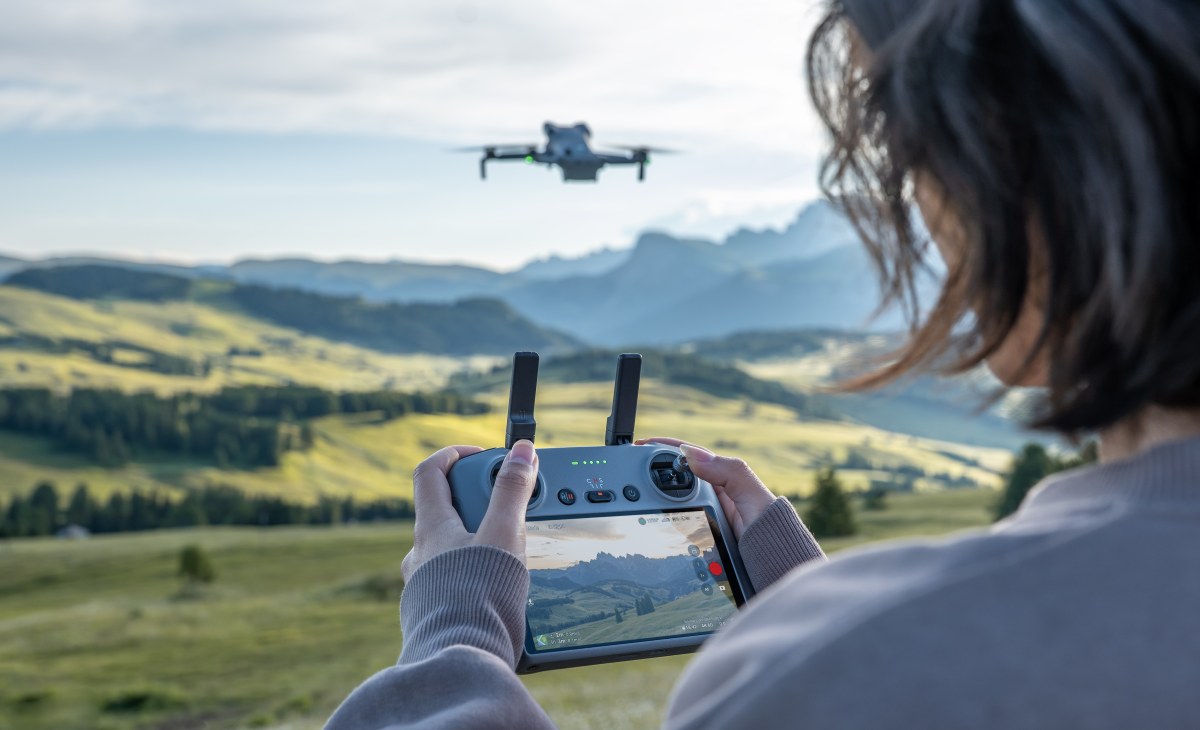
If you’ve ever wished your DJI drone could fly itself smoothly while you focus on storytelling, the Waypoint Flight feature is exactly what you’re looking for.
Instead of manually nudging sticks and hoping everything lines up, DJI’s automated Waypoint Flight lets pilots plan an entire mission in advance — where the drone flies, how fast it moves, where the camera points, and what happens at each moment along the way. Once you hit go, the drone executes the plan with machine-level consistency.
For beginners, it can feel like cheating. For experienced pilots, it feels like freedom.
Here’s a clear, no-nonsense breakdown of how DJI’s Waypoint Flight works, which consumer drones support it, and why this feature has quietly become one of DJI’s most powerful creative tools.
What is DJI’s automated Waypoint Flight feature, really?
At its core, Waypoint Flight is automated route planning. You place virtual markers — called waypoints — “in the air” or on a map. Each waypoint stores flight data such as altitude, speed, heading, camera angle, and even hover time. DJI’s software then connects those points into a smooth flight path. Basically, the drone doesn’t just move from A to B. It:
- Adjusts speed automatically
- Smooths turns into curved paths
- Maintains camera framing
- Repeats the route precisely every time
That’s why Waypoint Flight is used for everything from cinematic fly-throughs to progress tracking and mapping. Once planned, the drone becomes less like a remote-controlled aircraft and more like a flying robot cameraman.
Manual flying still matters, but Waypoint Flight changes how pilots think. Instead of reacting in real time, you’re:
- Planning shots like a director
- Letting software handle execution
- Focusing on composition, not stick input
For solo creators, this is huge. You don’t need a second operator. You don’t need perfect thumbs. You just need a plan.
New: The US isn’t banning every foreign drone after all
Which DJI consumer drones support Waypoint Flight?
Not every DJI drone gets waypoint flight, and that’s intentional. This feature requires accurate GPS, strong obstacle sensing capabilities, and reliable flight stability, especially when the aircraft is flying autonomously. DJI limits Waypoint Flight to drones that can handle the responsibility safely.
Here are the current DJI consumer drones that support automated Waypoint Flight, and why each one stands out.
DJI Mavic 4 Pro
Best for high-end cinematic planning
The Mavic 4 Pro sits at the top of DJI’s consumer lineup, and waypoint flight feels tailor-made for it. This drone is built for precision, consistency, and long, complex automated routes. Here’s why it works so well with Waypoint Flight:
- Large sensor camera with strong dynamic range
- Advanced obstacle sensing for safer automated flying
- Extremely stable flight behavior
If you’re planning intricate waypoint missions with multiple camera actions and points of interest, this is the drone that DJI clearly had in mind.
More: Winter flying tips every DJI drone pilot should know
DJI Mavic 3 series
Proven automation with excellent image quality
The Mavic 3 series helped normalize Waypoint Flight for serious hobbyists and professionals alike. It combines strong flight time with dependable GPS and camera performance — exactly what automation needs. Standout strengths:
- Excellent low-light and color performance
- Long flight time for extended waypoint routes
- Reliable positioning and smooth motion
For many pilots, this is the drone where waypoint flight stopped feeling experimental and started feeling trustworthy.
DJI Air 3S
The sweet spot between power and portability
The Air 3S brings waypoint flight to a more travel-friendly form factor without sacrificing capability. It’s powerful enough to handle complex routes, but small enough to take anywhere. Here’s why it’s so popular with creators:
- Dual-camera system for creative flexibility
- Strong obstacle sensing for safer autonomous flight
- Great balance between performance and size
This is often the drone that pilots choose when they want Waypoint Flight without stepping up to a full flagship.
DJI Air 3
The most approachable way to learn waypoint flying
The Air 3 is where many pilots first experience automated Waypoint Flight, and it’s an excellent learning platform. It delivers consistent automation without overwhelming newer users. Key advantages of Air 3:
- Dual cameras for varied framing
- Predictable flight behavior
- Easy integration with DJI Fly
If you’re upgrading from manual-only flying, this is one of the easiest transitions into automation.
DJI Mini 5 Pro
Lightweight drone, serious automation
Waypoint flight on a sub-250g drone still feels a little wild, and the Mini 5 Pro pulls it off. Despite its size, it handles automated routes with surprising confidence. Why it matters:
- Sub-250g weight simplifies regulations in many regions
- Advanced automation in a compact package
- Ideal for travel and repeatable shots
This is a reminder that waypoint flight isn’t just for big drones anymore.
DJI Mini 4 Pro
Beginner-friendly automation done right
The Mini 4 Pro is often recommended to first-time DJI pilots, and Waypoint Flight plays a big role in that recommendation. It lets new pilots explore automation without jumping into heavier aircraft. What makes it work:
- Obstacle sensing rare in this weight class
- Simple, clean DJI Fly interface
- Smooth waypoint execution
For learning how automated waypoint flying works, this drone lowers the barrier significantly.
How DJI Waypoint Flight actually works (Step-by-step guide)
DJI doesn’t hide waypoint flight behind complicated menus. Once you know where to look, the workflow is surprisingly logical.
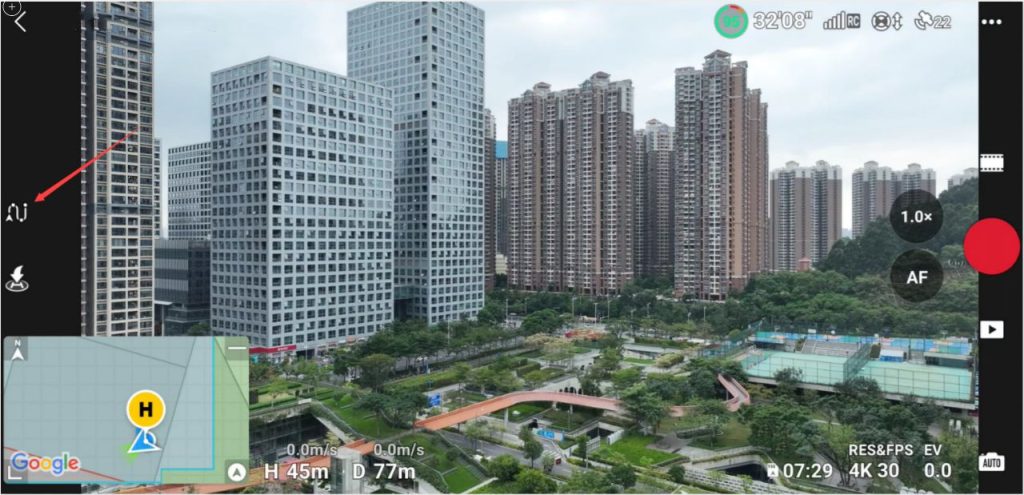
Step 1: Pin your waypoints
After takeoff, fly to a position and pin a waypoint. You have two main options:
- Use the Remote Controller: Press the Fn or C1 button to instantly pin a waypoint at the drone’s current position.
- Use the DJI Fly app: Tap the “+” button in the camera view or tap directly on the map.
Pro planning tip (before takeoff): You can pin waypoints on the map even before flying — no drone connection required. This is great for scouting locations or planning flights at home.
⚠️ Safety reminder: If waypoints are placed too close together at high speeds, the drone may dip below waypoint altitude. Always watch for obstacles.
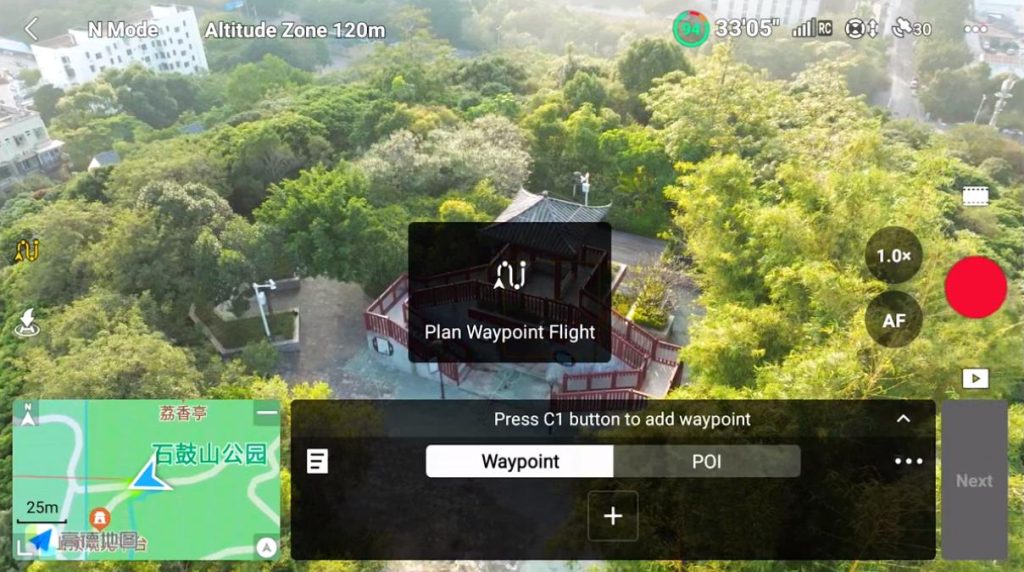
Step 2: Customize each waypoint
Once your waypoints are placed, tap on any waypoint number to customize it. Here’s what you can adjust per Waypoint:
- Altitude
- Speed
- Heading
- Gimbal tilt
- Zoom level
- Hover time (0–30 seconds)
- Camera actions (like starting video)
Key limits to know
| Setting | Limit |
|---|---|
| Maximum waypoints | 200 |
| Speed range | 0.1–15 m/s |
| Default altitude | 50 meters |
Pro tip: You can apply many settings to all waypoints at once, saving tons of time. Camera actions are the exception.
Step 3: Add Points of Interest (POIs)
Want your drone to keep the camera locked on a subject, like a building, statue, or mountain peak? That’s where POIs come in. A POI tells the drone: “No matter where you fly, keep looking at this.”
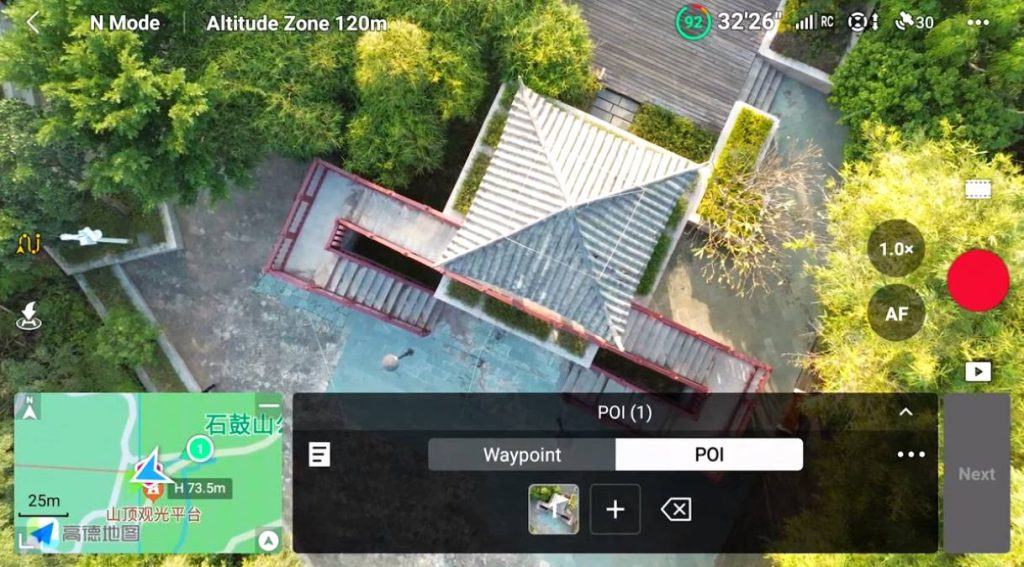
Setting up a POI
- Tap POI in the operation panel
- Pin it using the controller, camera view, or map
- Adjust altitude and link it to one or more waypoints
You can even link multiple waypoints to a single POI, which is perfect for smooth orbits or parallax shots.
Step 4: Plan the overall route
After setting your waypoints and POIs, tap Next to configure global route settings. Global route settings include:
- Overall flight speed
- End-of-flight action
- Camera selection
- Signal-loss behavior
- Starting waypoint
Important route rules to know:
- Waypoints are flown in order only
- You can’t reverse the route mid-flight
- Starting at the last waypoint ends the task immediately
⚠️ DJI safety tip: Default signal-loss behavior is Return to Home (RTH), and that’s usually the smartest choice.
Step 5: Run the mission
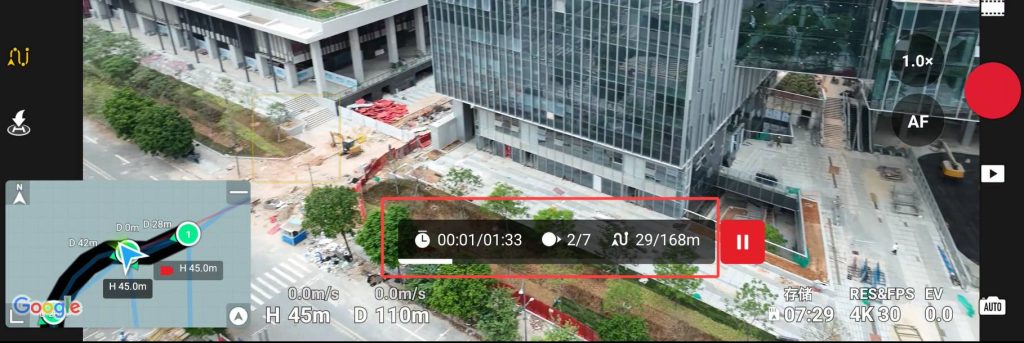
This is where your planning turns into action. Tap GO to upload the task to the drone. You can cancel during upload if needed.
During the flight, the DJI Fly app will display:
- Remaining flight time
- Waypoints completed
- Distance traveled
You can:
- Pause the task
- Resume it
- End it entirely
End-of-flight options
Your drone can:
- Hover
- Return to Home
- Land
- Fly back to the starting point
Critical tip: Before flying, set obstacle avoidance to Bypass or Brake in Safety settings.
Step 6: Save and reuse routes
DJI knows good flight plans are worth keeping.
Auto save: Your route is automatically saved every minute during planning.
Manual save: Open the Library from the menu to:
- Save routes
- Rename them
- Reopen past tasks
Cross-device sync (with limits)
With your DJI Fly app updated to its latest version, you can sync waypoint tasks between devices — except in the US, due to regional restrictions.
Why Waypoint Flight on DJI drones is a big deal
Waypoint flight doesn’t get the same hype as new cameras or sensors, but it arguably changes how DJI drones are used more than any single hardware upgrade. It reduces pilot workload, improves consistency, enables repeatable creative shots, and makes solo flying far more powerful.
For beginners, it removes pressure. For experienced pilots, it removes friction.
As such, DJI’s automated Waypoint Flight isn’t just a smart flight mode; it’s a shift in mindset. You stop thinking like a pilot reacting in real time and start thinking like a planner designing a shot. Once you experience how reliable and polished waypoint flying can be, it’s hard to go back. And that may be the clearest sign that DJI got this one right.
More: End of an era: DJI dropping support for Mavic Mini drone, Osmo Pocket


FTC: We use income earning auto affiliate links. More.


Comments